How to Add a Custom Cursor
Most games look better with a custom cursor. The default browser arrow screams "webpage" — it breaks the whole pixel-art vibe. Swapping it out for your own sprite is quick and makes a big difference.
We need three things: hide the default cursor, define a cursor sprite, and draw it at the mouse position every frame.
Hiding the Default Cursor
Call cursor(false) in your init() function to hide the browser cursor. Under the hood, it sets CSS cursor: none on the canvas.
// inside init()
cursor(false);

// the browser cursor is now hidden over the canvas
// call cursor() to restore it, or cursor('pointer') for a CSS cursor
You can bring it back any time — cursor() restores the default arrow, and cursor('pointer') or any other CSS cursor value works too. Handy if your game has menus that feel better with a normal cursor.
Defining a Cursor Sprite
Sprites in Floaty are 8x8 arrays of color values. Each number maps to a palette color (0–15), and -1 means transparent. Here's an arrow cursor — 7 (white) fills the shape, 0 (black) outlines it:
const sprites = {
    cursor: [
         7,  0, -1, -1, -1, -1, -1, -1,
         7,  7,  0, -1, -1, -1, -1, -1,
         7,  7,  7,  0, -1, -1, -1, -1,
         7,  7,  7,  7,  0, -1, -1, -1,
         7,  7,  7,  7,  7,  0, -1, -1,
         7,  7,  0,  0,  0,  0, -1, -1,
         7,  0,  0, -1, -1, -1, -1, -1,
         0,  0, -1, -1, -1, -1, -1, -1,
    ],
};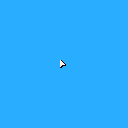
Read the array top to bottom, left to right, and you can see the arrow take shape: a single pixel at the top-left, widening row by row, then tapering back. We pass the sprites object to start() so the engine knows about it.
Tip: You can design sprites visually in the sprite editor — draw your cursor pixel by pixel, then copy the array with Ctrl+C (or Cmd+C on Mac).
Drawing the Cursor
Now we just need to draw it. Read the mouse position with mouse() in update(), then draw the sprite there in draw():
engine.scope(({ start, cls, spr, mouse, cursor }) => {
    const sprites = {
        cursor: [
             7,  0, -1, -1, -1, -1, -1, -1,
             7,  7,  0, -1, -1, -1, -1, -1,
             7,  7,  7,  0, -1, -1, -1, -1,
             7,  7,  7,  7,  0, -1, -1, -1,
             7,  7,  7,  7,  7,  0, -1, -1,
             7,  7,  0,  0,  0,  0, -1, -1,
             7,  0,  0, -1, -1, -1, -1, -1,
             0,  0, -1, -1, -1, -1, -1, -1,
        ],
    };

    let pos = { x: 0, y: 0 };

    function init() {
        cursor(false);
    }

    function update() {
        pos = mouse();
    }

    function draw() {
        cls(12);
        spr('cursor', pos.x, pos.y);
    }

    start({ sprites, sounds: {}, init, update, draw, target });
});
The engine converts screen coordinates to canvas coordinates for you, so mouse() returns values in the same 128x128 pixel space you draw in. The sprite's top-left corner lands on the mouse position — that feels natural for an arrow since the "tip" is at the top-left.
Going Further
Not every cursor shape works with top-left alignment. A crosshair should be centered on the mouse position — subtract half the sprite size from each coordinate:
const sprites = {
    crosshair: [
        -1, -1, -1,  7, -1, -1, -1, -1,
        -1, -1, -1,  7, -1, -1, -1, -1,
        -1, -1, -1,  7, -1, -1, -1, -1,
         7,  7,  7, -1,  7,  7,  7, -1,
        -1, -1, -1,  7, -1, -1, -1, -1,
        -1, -1, -1,  7, -1, -1, -1, -1,
        -1, -1, -1,  7, -1, -1, -1, -1,
        -1, -1, -1, -1, -1, -1, -1, -1,
    ],
};

// in update(), read the mouse position:
pos = mouse();

// in draw(), center the crosshair on it:
spr('crosshair', pos.x - 3, pos.y - 3);
A few directions you could take this:
- Animated cursors — define multiple sprite frames and cycle through them with a counter
- Context-sensitive cursors — swap the sprite based on what the mouse is over (a hand for buttons, a crosshair when aiming)
- Cursor trails — store the last few mouse positions in an array and draw faded copies of the sprite at each one