How to Add Custom Keybinds
Players have strong opinions about controls. Some swear by WASD, others need arrow keys, and plenty of folks want to use a gamepad. A good keybind system lets players set things up their way — and remembers their choices between sessions.
We're going to build a complete keybind system: an abstraction layer over raw input, a way to capture new bindings, and persistence with localStorage.
Understanding the Input API
Floaty gives us two functions for keyboard input. btn(key) returns true every frame while a key is held — use it for continuous actions like movement. btnp(key) returns true only on the first frame of a press — use it for discrete actions like jumping or menu selection.
Let's look at how they work:
// in your update() function
if (btn('ArrowUp')) {
    player.y -= 1; // move up while held
}

if (btnp('z')) {
    player.jump(); // trigger once per press
}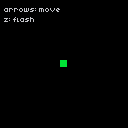
The key parameter matches JavaScript's KeyboardEvent.key values: 'ArrowUp', 'ArrowDown', 'z', 'x', 'Enter', ' ' (space), and so on.
This works fine. But hardcoding key names throughout your game makes rebinding a nightmare.
Creating an Input Map
Instead of calling btn('ArrowUp') directly, we define a mapping from action names to keys. Then we check actions by name — the actual keys become configurable in one place:
const keybinds = {
    up: 'ArrowUp',
    down: 'ArrowDown',
    left: 'ArrowLeft',
    right: 'ArrowRight',
    jump: 'z',
    action: 'x',
};

function input(action) {
    return btn(keybinds[action]);
}

function inputPressed(action) {
    return btnp(keybinds[action]);
}

// in update()
if (input('up')) {
    player.y -= 1;
}

if (inputPressed('jump')) {
    player.jump();
}
This is the foundation of every keybind system. Your game logic uses semantic names like 'jump' and 'action', while the keybinds object handles the translation. Want to change jump from Z to Space? Update one line.
Tip: Use action names that describe what happens, not which key does it. 'jump' is better than 'z_key' — it stays meaningful even after rebinding.
Capturing New Bindings
Now for the fun part. To let players rebind keys at runtime, we need to capture the next keypress and assign it to an action. We set a flag indicating which action is waiting for a new key, then listen for the next keydown event:
let waitingForKey = null; // which action we're rebinding

function startRebind(action) {
    waitingForKey = action;
}

function captureKey(event) {
    if (waitingForKey) {
        keybinds[waitingForKey] = event.key;
        waitingForKey = null;
    }
}

// attach this to a DOM element or check in update()
window.addEventListener('keydown', captureKey);
When waitingForKey is set, the next key pressed becomes the new binding for that action. A typical rebind UI shows a list of actions — when the player clicks one, you call startRebind() with that action name, display "Press a key...", and wait.
It turns out this pattern works for pretty much any input configuration system.
Saving and Loading Bindings
Players expect their settings to persist. Nobody wants to rebind their controls every time they open the game. We use localStorage to save the keybinds object as JSON, and load it back on game start:
const STORAGE_KEY = 'my-game-keybinds';

function saveKeybinds() {
    localStorage.setItem(STORAGE_KEY, JSON.stringify(keybinds));
}

function loadKeybinds() {
    const saved = localStorage.getItem(STORAGE_KEY);
    if (saved) {
        Object.assign(keybinds, JSON.parse(saved));
    }
}

// call loadKeybinds() in init() to restore settings
// call saveKeybinds() after any rebind
Call loadKeybinds() in your init() function so returning players get their custom controls immediately. Call saveKeybinds() after each rebind so changes stick.
Putting It All Together
Let's wire it all up. Here's a working demo with a movable square and an in-game rebind menu. Arrow keys navigate the menu by default, Enter starts rebinding the selected action. The player square moves using whatever keys are currently bound:
engine.scope(({ start, cls, rectfill, text, btn, btnp }) => {
    const keybinds = {
        up: 'ArrowUp',
        down: 'ArrowDown',
        left: 'ArrowLeft',
        right: 'ArrowRight',
        action: 'z',
    };

    const player = { x: 60, y: 60 };
    let waitingForKey = null;
    let menuIndex = 0;
    const actions = ['up', 'down', 'left', 'right', 'action'];

    function input(action) {
        return btn(keybinds[action]);
    }

    function inputPressed(action) {
        return btnp(keybinds[action]);
    }

    function loadKeybinds() {
        const saved = localStorage.getItem('demo-keybinds');
        if (saved) Object.assign(keybinds, JSON.parse(saved));
    }

    function saveKeybinds() {
        localStorage.setItem('demo-keybinds', JSON.stringify(keybinds));
    }

    function init() {
        loadKeybinds();
    }

    function update() {
        if (waitingForKey) return;

        // player movement
        if (input('up')) player.y -= 1;
        if (input('down')) player.y += 1;
        if (input('left')) player.x -= 1;
        if (input('right')) player.x += 1;

        // clamp to screen
        player.x = Math.max(0, Math.min(120, player.x));
        player.y = Math.max(0, Math.min(120, player.y));

        // menu navigation
        if (btnp('ArrowDown')) menuIndex = (menuIndex + 1) % actions.length;
        if (btnp('ArrowUp')) menuIndex = (menuIndex - 1 + actions.length) % actions.length;
        if (btnp('Enter')) {
            waitingForKey = actions[menuIndex];
        }
    }

    function draw() {
        cls(0);

        if (waitingForKey) {
            text('Press a key for:', 20, 50, 7);
            text(waitingForKey.toUpperCase(), 20, 60, 10);
            return;
        }

        // draw player
        rectfill(player.x, player.y, player.x + 7, player.y + 7, 11);

        // draw keybind menu
        for (let i = 0; i < actions.length; i++) {
            const action = actions[i];
            const y = 4 + i * 10;
            const color = i === menuIndex ? 10 : 6;
            text(`${action}: ${keybinds[action]}`, 4, y, color);
        }
    }

    // capture new keybind
    window.addEventListener('keydown', (e) => {
        if (waitingForKey) {
            keybinds[waitingForKey] = e.key;
            saveKeybinds();
            waitingForKey = null;
        }
    });

    start({ sprites: {}, sounds: {}, init, update, draw, target });
});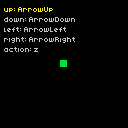
The keybinds are saved to localStorage automatically after each change, so refreshing the page keeps your custom controls.
Take some time to play with the demo. Rebind a few keys, refresh the page, and see that your changes stuck. Try binding the same key to multiple actions and see what happens.
Going Further
- Default reset — add a button that restores the original
keybindsobject and clears localStorage - Conflict detection — warn players if they bind the same key to multiple actions
- Gamepad support — extend the
input()function to check both keyboard and gamepad buttons - Multiple profiles — let players switch between control schemes (e.g., "keyboard", "one-handed")